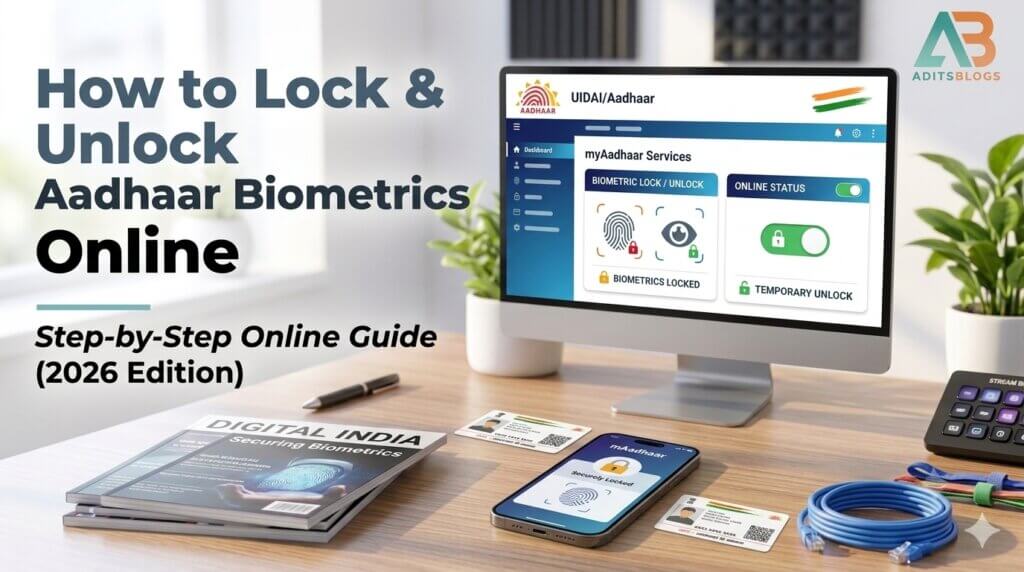
An Aadhaar number can be used for several kinds of authentication, including fingerprint, iris and face. If you are not expecting a biometric verification, locking those biometric modes can add a useful layer of control. The setting is free, reversible and available through UIDAI’s official services—but it is easy to confuse biometric locking with locking the Aadhaar number itself.
- Aadhaar biometric lock in plain language
- Lock/Unlock Biometrics
- Lock/Unlock Aadhaar
- Authentication History
- Before you start
- How to lock Aadhaar biometrics online
- Step 1: Open the official service
- Step 2: Authenticate the request
- Step 3: Enable the biometric lock
- Step 4: Verify the setting
- How to unlock locked Aadhaar biometrics
- A safe real-world workflow
- What to do after suspicious Aadhaar activity
- Common mistakes to avoid
- Conclusion
This practical guide explains what the biometric lock does, what it does not do, how to enable or temporarily unlock it, and how to recover when authentication is needed unexpectedly. The steps are based on UIDAI’s current online-service guidance and MyAadhaar security pages.
Aadhaar biometric lock in plain language
UIDAI describes biometric locking as a service that lets an Aadhaar holder lock and temporarily unlock fingerprint, iris and face authentication. When the lock is active, an entity attempting biometric Aadhaar authentication should receive error code 330, indicating that biometrics are locked.
The feature does not erase or replace your biometrics. It changes whether those biometric modes can be used for authentication. It is also different from locking your Aadhaar number, which restricts use of the UID and relies on the latest 16-digit Virtual ID, or VID, for unlocking. Treat these as two separate controls even though UIDAI lists both under Aadhaar security services.
Lock/Unlock Biometrics
- What it restricts: Fingerprint, iris, and face authentication.
- When it is useful: During periods when you do not expect to undergo biometric Aadhaar verification.
- What you need: Access to the official UIDAI service and your registered mobile number to receive an OTP.
Lock/Unlock Aadhaar
- What it restricts: The use of your actual Aadhaar number for authentication.
- When it is useful: When you need a broader, UID-level restriction across all identity services.
- What you need: Your latest Virtual ID (VID) and an OTP/TOTP generated under UIDAI’s official process.
Authentication History
What you need: Your Aadhaar number or VID, alongside registered-mobile verification.
What it shows: A log of your recent Aadhaar authentication records.
When it is useful: When reviewing your account for unfamiliar or suspicious activity.
Before you start
Use only an official UIDAI or MyAadhaar address. Type myaadhaar.uidai.gov.in yourself or begin at uidai.gov.in; do not sign in through an unsolicited message. Keep the mobile number registered with Aadhaar available because UIDAI states that it is essential for the biometric lock/unlock service.
Do not share an OTP, VID, full Aadhaar number or downloaded identity document with a caller claiming to “help” you lock biometrics. UIDAI’s official service is designed for the Aadhaar holder to complete directly.
How to lock Aadhaar biometrics online
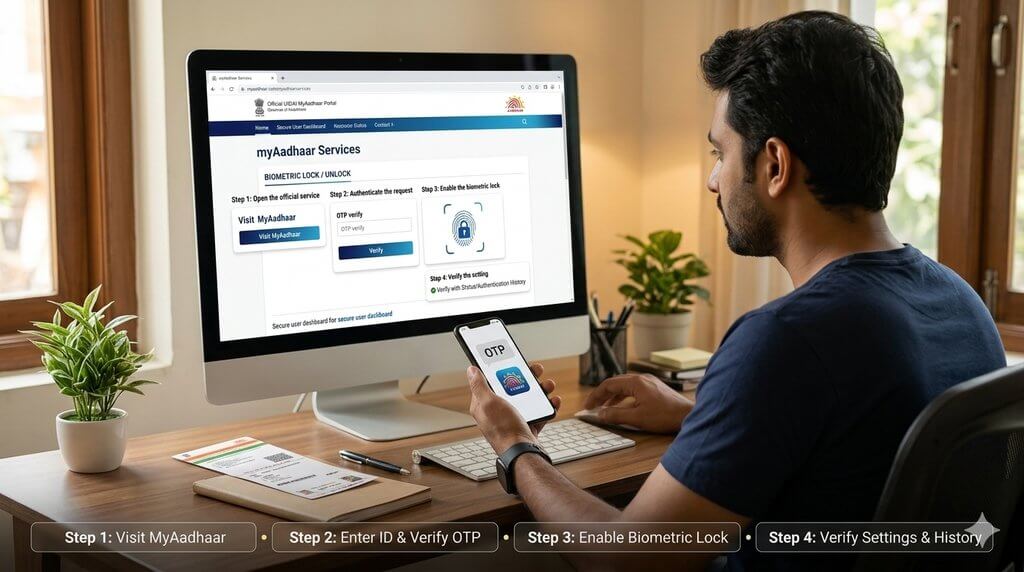
Step 1: Open the official service
Visit MyAadhaar and choose Lock/Unlock Biometrics under security-related services. If the layout changes, use UIDAI’s My Aadhaar page to reach the service rather than relying on a third-party shortcut.
Step 2: Authenticate the request
Enter the identifier and security details requested on the official page, then verify the OTP sent to the mobile number registered with Aadhaar. Read the page labels carefully: biometric lock and Aadhaar/UID lock are not interchangeable.
Step 3: Enable the biometric lock
Confirm the option to lock biometrics. Save the confirmation message or reference shown on the official page. Do not publish a screenshot containing your Aadhaar number, VID, phone number or transaction identifiers.
Step 4: Verify the setting
Return through the official service and confirm that biometric locking is enabled. If you are reviewing security after suspicious activity, also check Aadhaar Authentication History. UIDAI says the history can show recent authentication records, though the interface may limit how many are displayed at one time.
How to unlock locked Aadhaar biometrics
UIDAI provides two different choices: a temporary unlock or disabling the locking system. Use temporary unlock when you need biometric authentication for a specific, legitimate task, then allow the protection to resume. Disable the lock only when you intentionally want biometric authentication to remain available.
Open the official Lock/Unlock Biometrics service, complete the registered-mobile verification and choose the appropriate unlock option. UIDAI also lists Aadhaar Seva Kendras, enrolment centres and its official mobile app as routes for biometric unlocking. If your registered mobile is unavailable or outdated, visit an authorised centre instead of trusting an unofficial agent.
A safe real-world workflow
Suppose a bank or mobile operator asks for fingerprint-based Aadhaar authentication. First verify that the request is expected and that you are dealing with the real organisation. Temporarily unlock biometrics yourself through UIDAI, complete the authentication while you are present, and check the status afterward. Never let someone keep your phone or dictate an OTP over a call.
If the authentication fails with a biometric-lock message, do not repeatedly scan or pay a person to “fix” it. Confirm the lock status on MyAadhaar. If the lock is off and failure continues, the issue may involve capture quality, service availability or another authentication condition—not necessarily fraud.
What to do after suspicious Aadhaar activity
Locking biometrics is a preventive control, not a complete incident response. Review Authentication History and note the date, time, authentication mode and requesting agency information displayed. Preserve screenshots with sensitive numbers masked. If an entry is unfamiliar, contact UIDAI through the official support routes published on uidai.gov.in and contact the relevant service provider.
Also review the security of the registered mobile number and primary email account. A criminal who controls your phone number or email may target several accounts at once. Change compromised passwords, enable strong two-step verification and report financial fraud immediately through the appropriate bank and official cybercrime channels.
Common mistakes to avoid
Do not assume the biometric lock stops every possible use of Aadhaar. It specifically controls fingerprint, iris and face authentication; other permitted modes or offline verification may work differently. Do not confuse a temporary biometric unlock with permanently disabling the locking system. And do not use search ads or look-alike domains when entering identity details.
Another mistake is leaving biometrics unlocked for convenience after a one-time task. If you prefer the extra control, recheck the setting when the task is finished. A two-minute status check is easier than reconstructing events after an unfamiliar authentication.
Conclusion
To lock Aadhaar biometrics safely, start from UIDAI or MyAadhaar, verify with the registered mobile number, enable the biometric lock, and confirm its status. When a trusted service genuinely needs fingerprint, iris or face authentication, choose a temporary unlock and review the setting afterward. Keep biometric locking separate in your mind from UID locking, and use Authentication History when you need to investigate activity.
For more practical India-focused digital-safety explainers, bookmark AditsBlogs, explore our free tools and share this checklist with family members who use Aadhaar-based services.
Frequently Asked Questions
Which Aadhaar biometrics can be locked?
UIDAI says fingerprint, iris and face authentication are covered by biometric locking.
Does biometric locking deactivate my Aadhaar?
No. It restricts biometric authentication; it is not the same as deactivating Aadhaar or locking the Aadhaar number.
Is a registered mobile number required?
UIDAI states that a registered mobile number is essential for the online biometric lock and unlock service.
Can I unlock biometrics only for one transaction?
UIDAI offers temporary unlocking as well as disabling the locking system. Temporary unlock is the safer choice for a specific expected task.
What should I do if I see unfamiliar authentication activity?
Preserve the details, contact UIDAI through official support, contact the named service provider, and secure the mobile and email accounts linked to your identity services.