
Disclosure: this post may contain affiliate links; AditsBlogs may earn a commission at no extra cost to you.
- What MacBooster 8 says it can do
- Who might find it useful?
- Does MacBooster make a Mac faster?
- A careful checklist before you install or subscribe
- MacBooster compared with manual maintenance
- Our practical view
- Frequently asked questions
- What macOS version does MacBooster 8 require?
- Does MacBooster replace Apple’s built-in security?
- Should I let a cleaner delete every file it finds?
- Is MacBooster available everywhere?
- Sources and review note
Affiliate disclosure: AditsBlogs may earn a commission if you buy through links in this guide, at no extra cost to you. We are not paid for a positive review. This is a research-based guide, not a hands-on test of MacBooster.
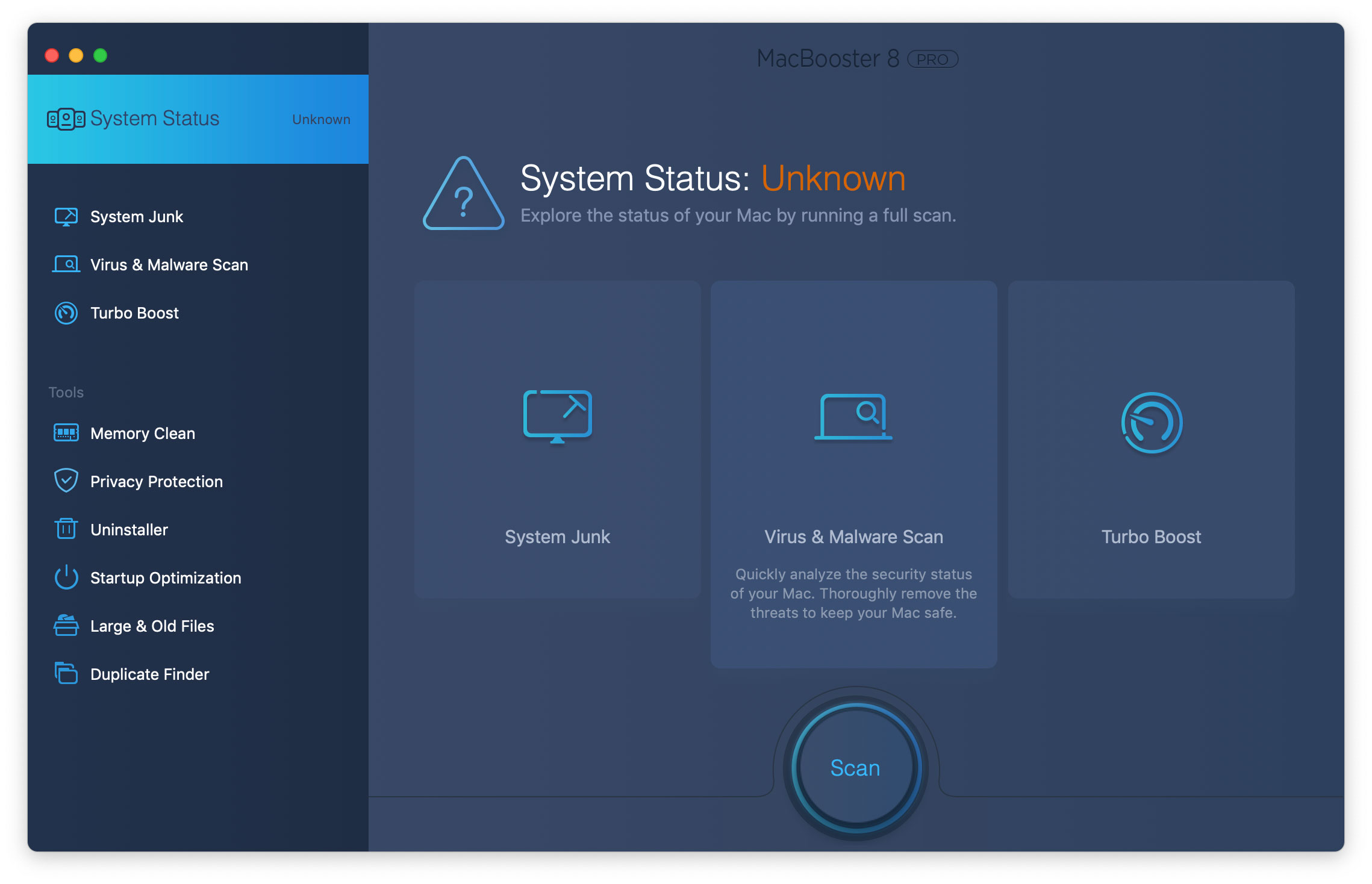
MacBooster 8 is IObit’s Mac maintenance app. The vendor describes tools for reviewing storage, removing selected junk files, finding large or duplicate files, managing startup items and scanning for security issues. Those features may be useful if you want maintenance tasks in one place, but they do not guarantee a faster Mac or replace careful backups and security practices.
Check MacBooster’s current features and compatibility →
Before downloading or buying, confirm the current plan, price, renewal terms and regional availability on the destination page. IObit’s current MacBooster page lists macOS 11.5 or later. Impact’s current IObit program profile lists Canada, France, Australia, the United Kingdom, Germany and the United States as service areas; if you are elsewhere, including India, check availability directly before you purchase.
What MacBooster 8 says it can do
MacBooster’s official page presents the product as a Mac cleanup, optimization and security tool. Its feature descriptions include:
- Storage review: tools for system junk, large and old files, and duplicate files. The vendor says its System Junk feature checks more than 20 types of files.
- Startup and memory tools: Startup Optimization, Turbo Boost and Memory Clean are listed as ways to review or manage resources.
- Security checks: the vendor describes virus scanning, malware removal and real-time protection.
These are vendor-stated capabilities. We have not independently tested their detection rates, cleanup accuracy, performance impact or protection against current threats. Treat a scan result as a prompt to investigate, not automatic proof that a file is harmful or safe to delete.
See MacBooster’s official feature and compatibility details.
Who might find it useful?
MacBooster may be worth evaluating if you prefer a single dashboard for reviewing storage categories, startup items and maintenance options. It can also help you locate files that deserve a manual review when your disk is crowded. The useful question is not whether a cleaner promises a “faster Mac”; it is whether its current tools solve a specific task you actually have.
It may be unnecessary if you only need to check available storage, manage login items or remove a file you already know you do not need. macOS includes built-in storage and security settings, and some maintenance tasks can be handled manually. Compare those options before paying for another utility.
Does MacBooster make a Mac faster?
There is no responsible way to promise that a cleanup app will speed up every Mac. Removing unneeded files can free disk space, but it does not automatically fix every cause of slow performance. A Mac can feel sluggish because of a demanding app, low free storage, a background process, an aging component or another issue.
Use Activity Monitor and macOS settings to understand the problem first. If you use MacBooster, review what each tool proposes and make one change at a time. Keep a current backup and avoid bulk-deleting files you cannot identify. Do not disable built-in protections because a third-party tool offers a separate security feature.
A careful checklist before you install or subscribe
- Check compatibility. The official page currently lists macOS 11.5 or later. Confirm that requirement against your Mac and the current download page.
- Identify the task. Decide whether you need storage review, duplicate-file discovery, startup-item management or another specific feature.
- Review files before removal. Open the candidate list, check important locations and keep a backup. Do not remove system or work files simply because a tool labels them unnecessary.
- Read the current offer. Check the current purchase page for plan length, renewal price, trial conditions, refund policy and cancellation steps. Prices and promotions can change.
- Set realistic expectations. A utility cannot guarantee more speed, better security or longer hardware life. Measure your own problem and verify whether the change helped.
MacBooster compared with manual maintenance
| Need | Start here | What to check |
|---|---|---|
| Find what is using storage | macOS storage settings or a file-review tool | Confirm each file is safe to remove and backed up |
| Reduce startup activity | Review Login Items in macOS settings | Keep items needed for work, accessibility or security |
| Investigate slow performance | Activity Monitor and the affected app’s settings | Look for the actual cause before installing a cleaner |
| Use several maintenance tools together | Compare MacBooster’s current feature list | Check compatibility, permissions, price and renewal terms |
Our practical view
MacBooster 8 is best approached as a set of optional maintenance tools, not a one-click cure. Its listed storage and startup features may appeal to someone who wants a guided interface, while users with a simple cleanup need may prefer macOS’s built-in settings. The right choice depends on your task, comfort level and budget.
If you are comparing tools for a website or content workflow as well, AditsBlogs maintains a free tools directory and a free SEO toolkit. These cover a separate need from Mac maintenance.
Review MacBooster’s current offer →
AditsBlogs may earn a commission from a qualifying purchase through this link. Check the current offer, compatibility and terms before buying.
Frequently asked questions
What macOS version does MacBooster 8 require?
The official MacBooster page currently says macOS 11.5 or later. Recheck the download page before installing in case the requirement changes.
Does MacBooster replace Apple’s built-in security?
No. Treat it as a separate utility with vendor-described security features. Keep macOS and apps updated, use built-in protections and review the product’s current permissions and privacy information.
Should I let a cleaner delete every file it finds?
No. Review the list first, keep a backup and remove only files you understand. A scan label alone is not enough reason to delete a file.
Is MacBooster available everywhere?
Product access and affiliate tracking can differ by location. The IObit partner profile currently lists Canada, France, Australia, the United Kingdom, Germany and the United States as service areas. Check the official destination for your location.
Sources and review note
Feature and compatibility descriptions were checked against the official MacBooster website on 24 October 2026. Partner acceptance and service areas were checked in AditsBlogs’ Impact account. No independent performance or security test was conducted. Featured photo by Dan Counsell via Unsplash.
STAY CONNECTED
More from AditsBlogs, in your inbox
Get occasional updates on new guides, tools, games and creative posts.