Disclosure: this post may contain affiliate links; AditsBlogs may earn a commission at no extra cost to you.
- Here is your ultimate guide to the best Google, Gmail, and browser tips and tricks for 2026.
- Part 1: The Chrome Revolution — Your Browser is Now an Agent
- 1. Stop Reading, Start Summarizing
- 2. Automate Digital Chores with “Auto Browse”
- 3. On-the-Fly Image Editing with “Nano Banana”
- 4. Turn Prompts into One-Click “Skills in Chrome”
- 5. The Screen-Select Pointer
- Part 2: Gmail on Autopilot — Achieving Inbox Zero with AI
- 6. Let the “AI Inbox” Prioritize Your Life
- 7. The Q&A Side Panel: Never Lose a Receipt Again
- 8. “Help Me Write” with Contextual Smart Replies
- 9. Draft Emails Hands-Free with Voice Mode
- Part 3: Google Workspace Hacks — Working Smarter, Not Harder
- 10. “Docs Live” for Brainstorming
- 11. Speak Spreadsheet Formulas into Existence
- 12. Generate Studio-Quality Slides with “Google Pics”
- 13. Auto-Categorize Data with Enhanced Smart Fill
- Part 4: The OS-Level Upgrade — Personal Intelligence & Gemini Spark
- 14. Leverage “Personal Intelligence”
- 15. Meet Gemini Spark: Your 24/7 Agent
- Final Thoughts: Evolving with AI
If you think you know how to use Google Chrome and Gmail, it’s time to hit refresh.
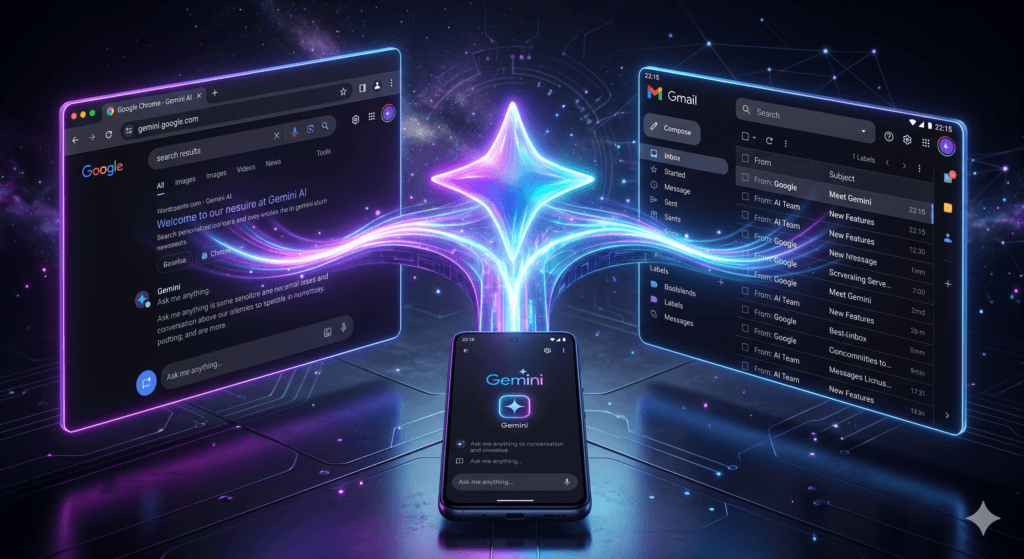
In 2026, Google didn’t just add a chatbot to their search bar; they completely rewired their entire ecosystem. From your web browser to your mobile operating system, Google Gemini is now deeply embedded into the fabric of how we work, communicate, and browse. The days of endlessly scrolling through email threads, manually writing complex spreadsheet formulas, or struggling to manage 50 open browser tabs are officially over.
Whether you are using a Chromebook, a Windows PC, a Mac, or an Android device, Gemini is ready to act as your personal, context-aware 24/7 assistant. But to get the most out of it, you need to know where the hidden levers are.
Here is your ultimate guide to the best Google, Gmail, and browser tips and tricks for 2026.
Part 1: The Chrome Revolution — Your Browser is Now an Agent
The web browser is no longer just a window to the internet; it is an active participant in your workflow. With Gemini in Chrome, the AI understands the context of whatever tab you are currently viewing.
1. Stop Reading, Start Summarizing
We all suffer from information overload. If you have a massive PDF, a long-form article, or a dense research paper open in a tab, simply click the Ask Gemini icon in your Chrome toolbar. Ask it to, “Give me the three main takeaways from this page and list the opposing arguments.” Gemini reads the active tab instantly and delivers a digestible summary, saving you hours of reading time.
2. Automate Digital Chores with “Auto Browse”
One of the most mind-blowing updates in 2026 is Auto Browse. Let’s say you are looking at a concert ticket in your email. You can open the Gemini side panel in Chrome and say, “Find and book a parking spot near this venue for Saturday night.” Gemini will actively browse parking websites, find the best options based on your ticket’s location and time, and present them to you to confirm. It does the clicking and searching for you.
3. On-the-Fly Image Editing with “Nano Banana”
Yes, it’s a funny name, but the utility is serious. Nano Banana is Chrome’s built-in generative AI image editor. If you are browsing a webpage for an apartment and want to see what a room looks like with different furniture, you can highlight the image and tell Gemini to “alter this image to include modern living room essentials.” It edits the image natively right inside the browser—no Photoshop required.
4. Turn Prompts into One-Click “Skills in Chrome”
Do you find yourself asking Gemini the same questions repeatedly? For instance, maybe you always ask it to generate side-by-side spec comparisons when shopping for electronics. In 2026, you can save these recurring workflows as Skills in Chrome. With one click, you can run a pre-saved AI prompt on any new webpage you visit.
5. The Screen-Select Pointer
Forget typing out long descriptions. You can now use your mouse pointer to select specific parts of a webpage and prompt Gemini directly. Highlight two different product descriptions on a page and right-click to ask, “Compare the battery life and warranty of these two items.”
Part 2: Gmail on Autopilot — Achieving Inbox Zero with AI
Gmail is where most professionals spend (and waste) the majority of their day. With Gemini integrated directly into your inbox, email management is fundamentally different.
6. Let the “AI Inbox” Prioritize Your Life
Stop sorting emails manually. The new AI Inbox feature automatically reads the context of your incoming mail. It pushes urgent deadlines, flight changes, and unpaid bills to the top of your screen, while quietly grouping newsletters and low-priority updates into a digest. It tells you what matters and when it matters.
7. The Q&A Side Panel: Never Lose a Receipt Again
Trying to find an old invoice from a contractor? Instead of fighting with Gmail’s search bar operators, just open the Gemini side panel and ask in plain English: “Who approved the marketing budget last quarter, and how much was it?” Gemini will scan your entire inbox history, find the specific thread, and give you the exact number without you ever having to open a single email.
8. “Help Me Write” with Contextual Smart Replies
Smart Replies used to be basic one-liners like “Sounds good!” Now, Contextual Smart Reply reads the entire 30-email thread and drafts a complete, highly specific response. If someone asks for a project update, Gemini can pull data from a Google Drive file automatically. Just type @ followed by the filename in the compose window, and Gemini will extract the exact metrics needed for your email.
9. Draft Emails Hands-Free with Voice Mode
Typing is so 2025. Gmail’s new Voice Mode allows you to dictate a rambling stream of consciousness. You can literally say, “Reply to Sarah, tell her the meeting is moved to Thursday, apologize for the delay, and ask if she has the Q3 reports.” Gemini will structure your ramblings into a polite, perfectly formatted professional email.
Part 3: Google Workspace Hacks — Working Smarter, Not Harder
The synergy between Google Docs, Sheets, and Slides is where the magic really happens.
10. “Docs Live” for Brainstorming
Staring at a blank page is a thing of the past. With Docs Live, you can use conversational voice features to outline a document. Talk out loud to Gemini about your ideas for a blog post or a project proposal, and the AI will act as your thought partner, organizing your spoken words into a structured, tiered outline in real-time.
11. Speak Spreadsheet Formulas into Existence
Google Sheets is incredibly powerful, but memorizing syntax like VLOOKUP or INDEX/MATCH is tedious. Now, you can just click the Gemini icon and type what you want to achieve: “Write a formula that counts cells in column A where column B is ‘Complete’ and column C is greater than 100.” Gemini writes the flawless formula and applies it instantly.
12. Generate Studio-Quality Slides with “Google Pics”
Presentations take hours to design. With the new Google Pics integration in Slides, you can give Gemini a prompt like, “Create a 10-slide presentation on our Q1 sales metrics, and include an illustration of a rocket ship launching in corporate colors.” Gemini will generate the structure, the text, and the custom, editable vector graphics all at once.
13. Auto-Categorize Data with Enhanced Smart Fill
If you have a spreadsheet full of customer feedback, don’t read them one by one to tag them as “Positive” or “Negative.” Gemini’s Smart Fill automatically detects incomplete column pairs. It will read the context of the text in one column and instantly fill out the categorization column for thousands of rows in seconds.
Part 4: The OS-Level Upgrade — Personal Intelligence & Gemini Spark
The biggest leap in 2026 isn’t just what Gemini can do inside individual apps—it’s how it connects them all together at the Operating System level.
14. Leverage “Personal Intelligence”
Gemini now acts as a holistic brain for your digital life, provided you give it permission. Because it securely connects to your Google Photos, Drive, and Gmail, it has Personal Intelligence. For example, you can ask your Android phone or Chromebook, “What size tires do I need for my car?” Gemini will scan your Google Photos, identify the make and model of the car you drive from a vacation photo, check your Gmail for a past mechanic’s receipt, and give you the exact tire specifications. That is the power of context-aware OS integration.
15. Meet Gemini Spark: Your 24/7 Agent
Google recently introduced Gemini Spark, an always-on personal agent that takes action on your behalf. Under your direction, Spark can navigate your digital life. If you receive an email about a doctor’s appointment, Spark will notice you have a conflict on your Google Calendar, automatically draft an email asking to reschedule, and hold it in your drafts folder for your final approval. It bridges the gap between passive assistance and active management.
Final Thoughts: Evolving with AI
The updates to Google Workspace, Chrome, and the underlying OS in 2026 represent a massive paradigm shift. We are moving away from software that requires us to input manual commands, and moving toward intelligent agents that anticipate our needs.
The secret to mastering these tools isn’t trying to learn them all in one day. Start small. Pick one tip—like using the Gemini Q&A side panel in Gmail or speaking your formulas into Google Sheets—and integrate it into your daily routine. Once you experience how much time you save, you’ll never want to go back to the old way of doing things.
Welcome to the future of productivity. Let Gemini do the heavy lifting.